Table of Contents
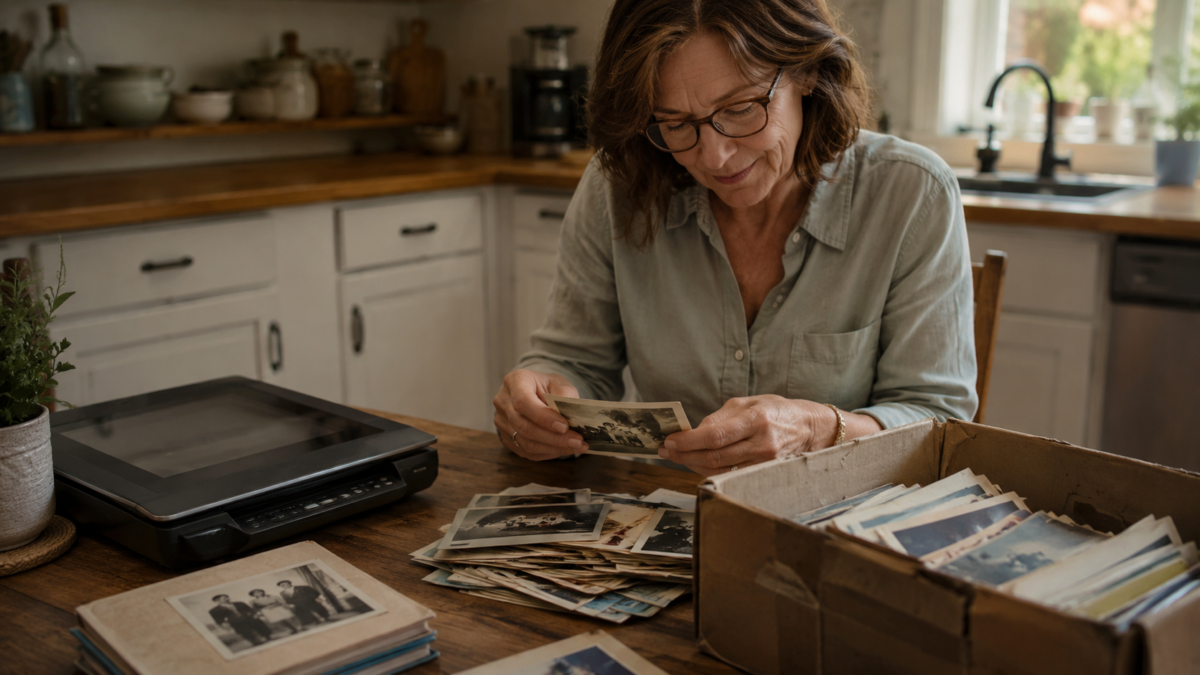
There is a box somewhere. Maybe in your parents’ house, or yours. Loose prints in yellowed envelopes, albums with cracked spines, drugstore packets with a date written in faded marker.
Most of those photos have been sitting there for years. You know you should do something with them. But doing something feels like a project that needs time, equipment, and a free weekend you never quite get to.
Here is what actually matters: when you decide to digitize old family photos, you are racing something more specific than fading dye. You are racing the window of time when the people who can tell you who is in those pictures are still here to do it. That is the clock that matters.
This post gives you a practical workflow: scanning method choices, file organization, proper backup, and how to use the scanning session as a story-capture opportunity before that window closes. You do not need a perfect setup. You need one box and a first session. If you are wondering why midlife is the right moment for this kind of work, read about why midlife is the perfect time to think about legacy.
Please note this page may contains affiliate links. If you purchase something through these links, I’ll receive a commission at no extra cost to you. Affiliate links help to support my website/blog and I only recommend products I love.
Why Old Family Photos Fade Faster Than You Think
Color photo chemistry is not on your side. The cyan dye layer in older color prints fades first, which is why so many photos from the 1970s and 1980s have shifted toward red or brown. Prints stored in typical home conditions face temperature swings, humidity, and occasional sunlight, and they are degrading whether you can see it yet or not.
The National Archives recommends storing photographs at 65 to 70 degrees Fahrenheit and 30 to 40 percent relative humidity. Almost no home meets those conditions consistently. That is not a reason to panic. It is a reason to stop waiting.
The deeper loss is not the image. A faded photo can sometimes be color-corrected. But once the person who knew who was in the photo is gone, that knowledge is gone with them. How many photos in your family collection right now could no one fully identify?
That is why sitting down with a parent or relative during the scanning process is worth more than the best scanner money can buy. Every photo they pick up is an opening: a name, a year, a story you would have missed entirely. If you want to go further with capturing what they know, recording your parents’ life stories is a natural next step once the photos are organized.
What You Need to Digitize Old Family Photos at Home
Three methods exist, and each has real trade-offs worth understanding before you start.
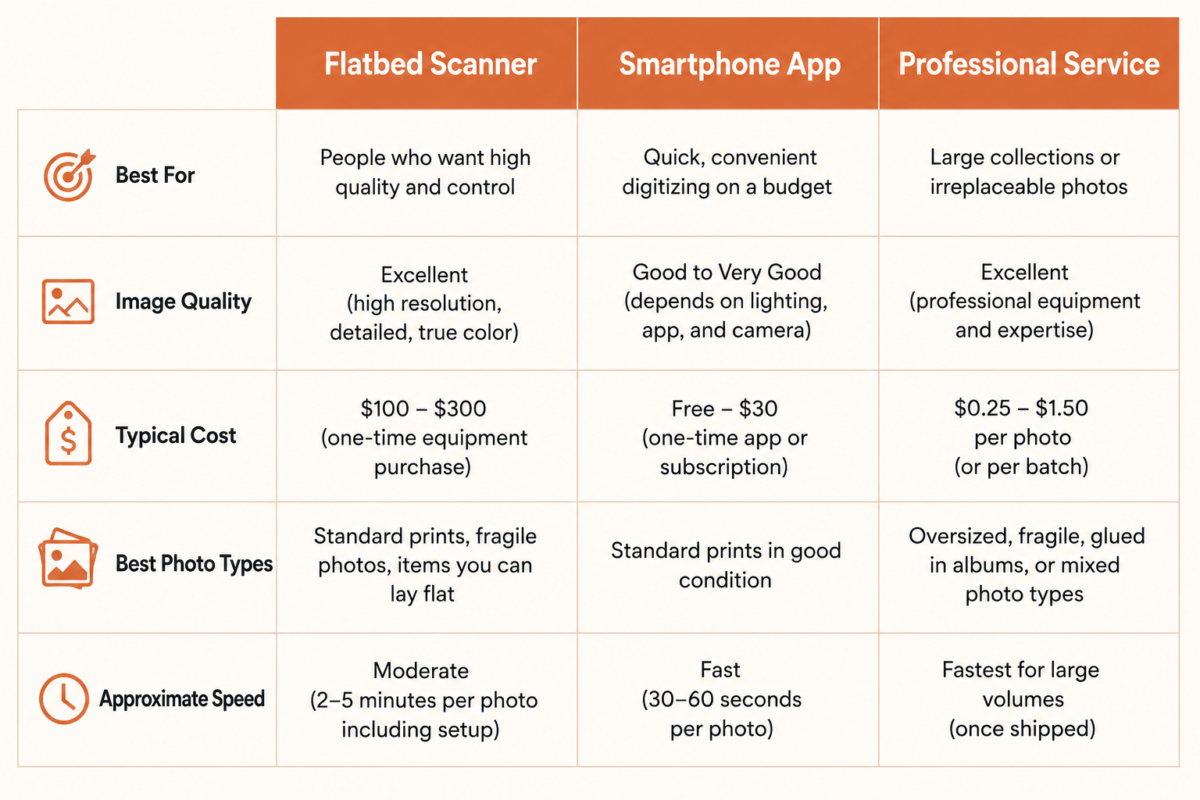
Flatbed scanner. This gives you the best archival quality. Scan standard 4×6 prints at 600 DPI minimum. For smaller photos, slides, or negatives, use 1200 DPI or higher. A capable flatbed scanner costs between $80 and $150 and handles fragile originals carefully. The AARP guide to digitizing family photos notes that a flatbed produces files you can enlarge and reprint, which a phone camera typically cannot match at the same quality level.
Smartphone scanning app. This is faster for large batches and produces files that work well for sharing and digital albums. Google PhotoScan reduces glare by taking multiple captures per image and stitching them together. Photomyne handles bulk collections with speed. Microsoft Lens works for both photos and documents. You likely already own everything you need for this method.
Professional service. This makes sense for large volumes, 35mm slides, negatives, or originals too fragile to handle safely at home. Legacybox, ScanMyPhotos, and Kodak Digitizing all offer mail-in services. Some CVS and Walgreens locations offer photo digitization through the Capture and iMemories platforms.
A practical rule: under 200 photos, do it at home. Over 500, or if you have slides and negatives mixed in, consider a professional service for at least that portion of the collection.
One thing stays constant regardless of method: keep your originals after digitizing. Digital files have failure modes of their own. Hard drives crash. Cloud services change. A physical original stored carefully remains your backup of last resort.
A Simple Scanning Workflow That Does Not Overwhelm You
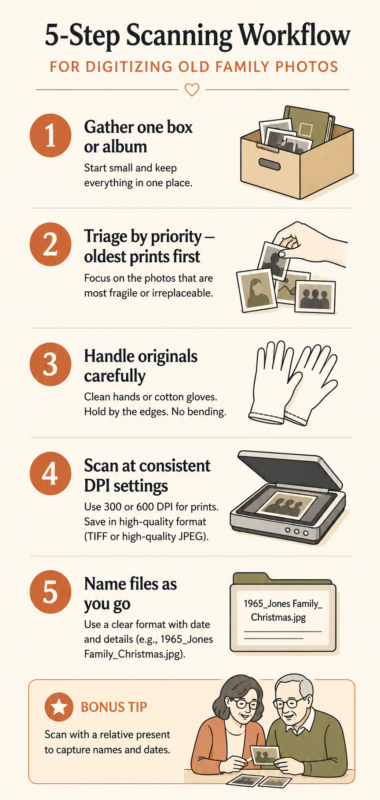
The mistake most people make is trying to tackle the whole collection at once. One box, one session. That is the only rule that matters at the start.
Begin by gathering a single container: one photo album, one shoebox, one packet from a family event. Within that container, triage by priority. Oldest prints first, then any with visible fading, then any with no known duplicate in the family.
Handle originals carefully. Clean, dry hands, or white cotton gloves for particularly delicate photos. Use a dry microfiber cloth to remove surface dust before placing anything on the scanner. No liquid cleaners.
Scan at consistent settings throughout the session: 600 DPI for standard 4×6 prints, 1200 DPI or higher for anything smaller. Save files as JPEG for general family sharing, or TIFF for archival master files you plan to print from later. Family Tree Magazine’s digitizing guidance suggests TIFF for anything irreplaceable and JPEG for working copies.
Name files as you go. A simple, consistent format: YYYY-MM_Description_Names.jpg. For example: 1978-07_Florida-vacation_Mom-Dad-Grandma.jpg. When the date is unknown, estimate the decade. circa-1965 is more useful than a blank filename.
The step most guides skip: if a parent or relative can sit with you during the session, treat every photo they pick up as an opening. What is the name? Where was this taken? What year? Write that information on the back of the original in archival-safe pencil, not ballpoint or permanent marker, which damage the paper over time. That one step turns a file management project into something closer to an oral history.
How to Organize Your Digital Photos So You Can Actually Find Them
Once the files exist, they need a home that makes sense in five years, not just today.
A simple folder structure works better than a complicated one. Year at the top level, event or family branch underneath: 1978/Florida-Vacation or 1962/Grandma-wedding. You do not need a perfect system. You need a consistent one.
Google Photos and Apple Photos both support people tagging and location tagging, which means a well-labeled photo in either platform becomes searchable even without a meticulous folder structure. For families with a mix of Apple and Google devices, Google Photos tends to work best as a shared library.
When the date is completely unknown, write what you do know. The family branch, a rough decade, a region. circa-1950s_Mom-side_Kansas is more useful than an untitled JPEG sitting in a miscellaneous folder.
Label the physical originals too. Archival-safe pencil on the back of each print, recording what you know or can reasonably guess. Do not leave the work of identification for the next generation.
Done and imperfect beats perfect and abandoned. Pick a folder structure, apply it consistently from the first session, and do not restart from scratch when you realize you could have named things differently.
The 3-2-1 Backup Rule for Photos You Cannot Replace
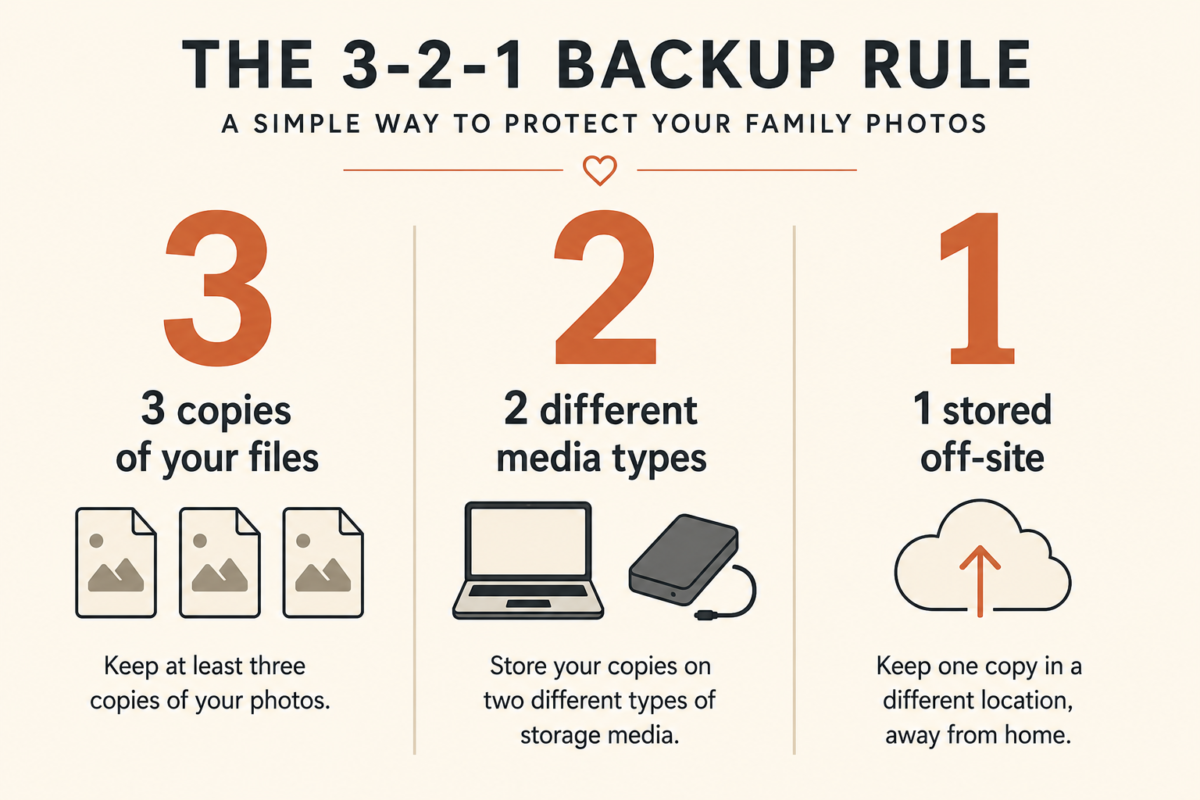
Three copies. Two different types of storage media. One copy stored somewhere off-site.
In practice: your main computer as the working copy, an external hard drive as the second copy, and a cloud service as the off-site third. Google Photos offers 15 gigabytes free. Amazon Photos provides unlimited original-quality storage for Amazon Prime members. iCloud Photos works well for households already on Apple devices.
Once you set the system up, verify it. Open the external drive and confirm the files are there. Open your cloud account and confirm the sync completed. Do that check once at setup, then let the system run.
For a more thorough backup that covers your entire computer, Backblaze runs a continuous full-system backup for about $9 per month. It is the closest thing to professional-grade home backup most people will ever need.
For physical originals after digitizing: acid-free photo boxes or archival albums, stored away from heat, humidity, and direct light. A basement or attic is typically the worst storage location. A cool interior closet is much better.
What to Do With Your Photos Once They Are Digital
Most digitizing guides end at backup. That is where the real opportunity starts.
Digital frame. Loading a Nixie or Aura frame with the best photos from the project gives those images an active life in your home. We have written about how a digital picture frame changed the way we display memories from travel, and the same logic applies even more powerfully to irreplaceable family photos.
Shared album. A Google Photos or iCloud Shared Album lets siblings, cousins, and adult children see and contribute to the same collection. People regularly surface photos no one else knew they had once a shared space exists.
Photo book. A decade-based or family-branch photo book from Artifact Uprising, Chatbooks, or Shutterfly gives family members something physical to pass along. Digital is durable. Printed is often what people actually read.
The story step. Photos are raw material. The stories that go with them complete the record. For a framework for turning what you find into something worth sharing, read about turning photos into a story worth sharing. The approach transfers directly to family photo projects.
Start with the photos. Follow the stories. Download the free 30 Living Legacy Questions PDF and use the scanning session as the beginning of a deeper conversation with the people who can still fill in the gaps.
Bottom Line
Digitizing old family photos is not a technology project. It is a preservation act that happens to involve a scanner or a phone.
The images matter. The stories behind them matter more. A photo of your grandmother at 25, unnamed and undated, disappears twice: first when it fades, and again when the last person who could have identified her is gone.
You do not need a perfect setup or a free weekend. You need one box, one session, and a decision to start before it feels urgent.
Read more about the most meaningful legacy you can leave your children for a broader look at what preservation work like this actually builds over time.
What is one box of photos you have been meaning to get to?
Frequently Asked Questions
What is the best way to digitize old family photos at home?
To digitize old family photos at home, use a flatbed scanner at 600 DPI for standard 4×6 prints, or a phone app like Google PhotoScan for quick batches. Name files with the year and description, back up to an external drive and cloud storage, and keep your originals.
Should I use a smartphone app or a flatbed scanner?
Use a flatbed scanner for archival-quality files you can enlarge or print later. Use a smartphone app for faster, lower-cost results suited to family sharing and digital albums. For slides and negatives, use a scanner with a transparency adapter or a professional service.
Do I need to keep original photos after digitizing them?
Yes. Digital files carry their own risks: hard drives fail, cloud services change, and files get corrupted. Keep originals in acid-free photo boxes or archival albums, stored away from heat, humidity, and direct light.
What is the 3-2-1 backup rule for family photos?
Three copies of your files, on two different types of media, with one copy stored off-site. In practice: your computer hard drive, an external hard drive, and a cloud service like Google Photos, iCloud, or Amazon Photos.
What do I do when I don’t know who is in an old photo?
Write what you do know on the back of the original in archival-safe pencil: the approximate year, where you think it was taken, and any family branch context. Add those notes to the digital file name or metadata too. An approximate answer beats nothing.